
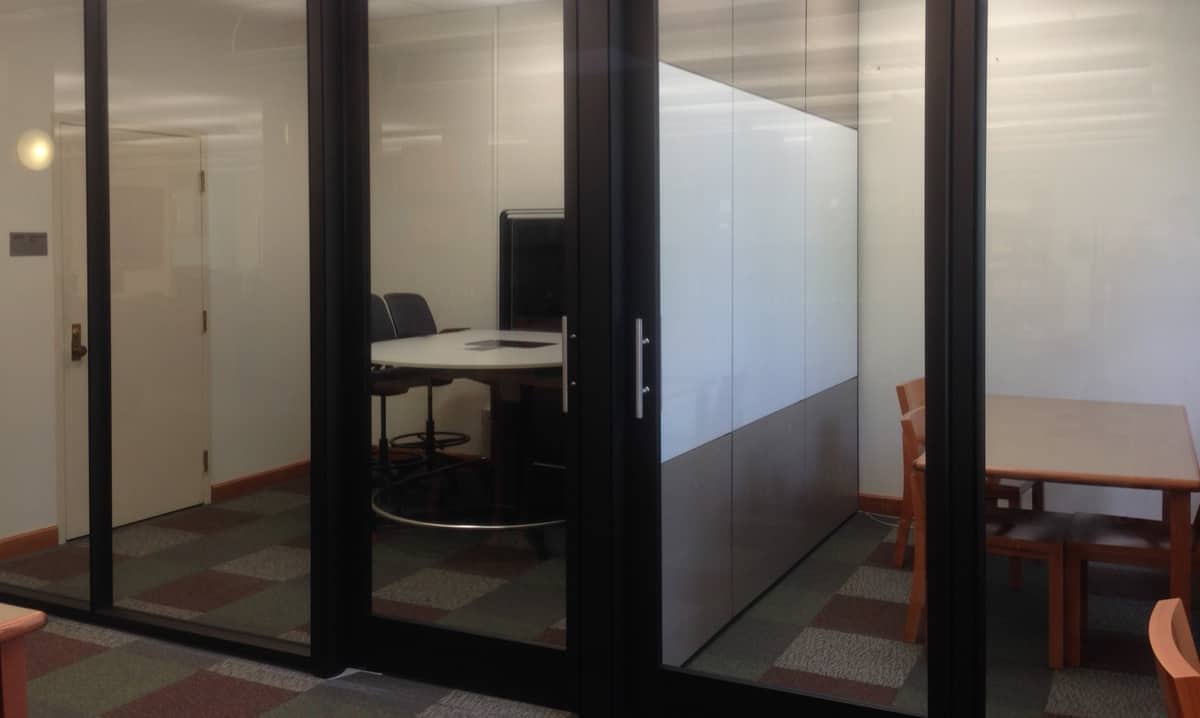
 The Lichtenberger Engineering Library has 2 group study rooms available for reservation.
Pod 1 & Pod 2
- Both Pods are equipped with a Solstice device for wireless collaboration. Easily share content from a laptop, mobile device, or tablet to the screen.
- Seating for 4–5 in each room
Reservation Procedure
- Go to office365.uiowa.edu and sign in with your HawkID and password.
- Open Calendar and select New Event in the upper-left corner.
- Enter your reservation details:
- Add a title for the reservation.
- Add the names of anyone who will be using the room with you.
- Select the date, start time, and end time for your reservation.
- Make sure your time zone is set to (UTC -06:00) Central Time (US & Canada).
- In the Location field, select Browse all rooms.
- Under Building, select SC Resources, then choose the pod you want to reserve:
- RES-SC-ENGLIB-POD1 for Pod 1
- RES-SC-ENGLIB-POD2 for Pod 2
- Make sure Mark as Private is not selected.
- Review the attendees, date, time, and room to make sure everything is correct.
- Select Send to submit the reservation.
- Check your email for confirmation that the room reservation was accepted.
Important
- Reservations are not confirmed until you receive an acceptance email.
- Recurring reservations will be declined.
- Reservations that conflict with an existing reservation will be declined.
- Reservations that do not meet Engineering Library reservation policies will be declined.
- Do not send reservation requests to RES-SC-ENGLIB-2001C. Requests sent to this location will not be automatically accepted or declined and will be manually deleted by library staff.
Solstice instructions
- Laptop
- Connect Laptop to Eduroam Wireless Network
- Open web browser to navigate to IP Address displayed on screen
- This will prompt computer to download and install the Solstice App
- Also can share screen without installing the Solstice App using the “Can’t install the app? Click here” link. This allows user to either share the web browser screen or the entire display.
- Enter Screen Key to connect device to the display
- Disconnect device before leaving room
- If Mersive Solstice App has previously been installed on Laptop and it is first time using the Solstice App:
- Type IP Address displayed on screen into the “Enter Screen Key to Connect” Box and App will request screen key.
- App will now display all Solstice Devices across campus and only Screen Key will be required to connect in the future.
- Mobile Device/Tablet
- Download Solstice App from Play Store/App Store
- Connect device to Eduroam Wireless Network
- Open App
- If it is first time using Solstice Device: Type IP Address displayed on screen into the “Enter Screen Key to Connect” Box
- This connects the App to all the Solstice Devices across campus
- Enter Screen Key to connect device to the display
- Disconnect device before leaving room
- UI Office of Teaching Guide
- Quick Start Guide
Reservation policies
2-2-2 Rules
Group spaces in the Lichtenberger Engineering Library may be reserved by sign-up posted by each room. Use of the group spaces is governed by the 2-2-2 rules.
- Two or more students are required to be present for group space use. Priority will be given to groups over individuals. Unattended items left in the room will be removed from the room and reservations will be cancelled.
- Reservations may last up to two hours. Consecutive reservations will not be permitted.
- Reservations can be made up to two weeks in advance.
No show policy
Groups have 10 minutes after the start of their reservation to arrive. If a group has not claimed their study space by that time their reservation will be cancelled.